
Widgeet-Color Widgets(Widget)
Hello WidgetPersonalization
4.51.04K Reviews
- Version
- 1.1.3.7
- Installs
- 10.00M
- Age Rating
- Everyone
Screenshots
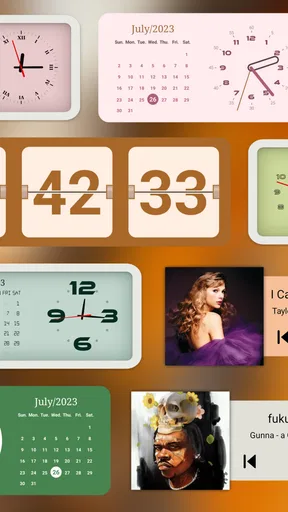
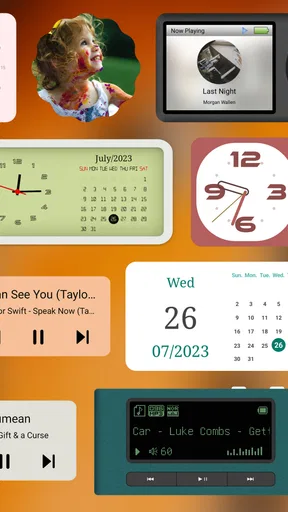
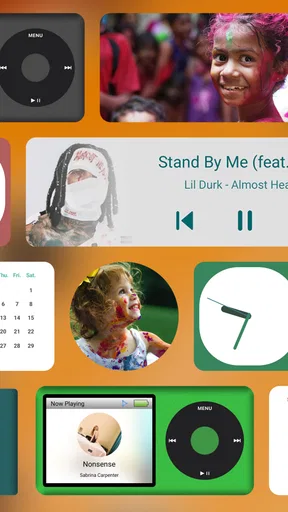
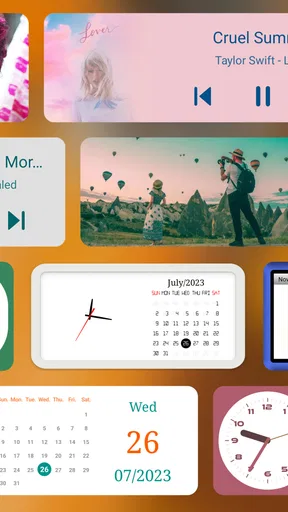
Our Review of Widgeet-Color Widgets(Widget)
 Analysis by Appyee
I tend to notice my home screen most when I’m trying to get something done quickly: checking the time, glancing at a date, or finding a photo that makes the phone feel like mine. That is the kind of everyday tuning Widgeet is built for. It is a free personalization app from Hello Widget, and its appeal is the chance to give familiar home-screen information a more personal look. I would recommend it to someone who enjoys arranging a phone’s appearance, though I would not choose it just to add features that the phone’s built-in widgets already handle well.
When a changing connection matters
Widgets are useful because they put information where I can see it without opening an app, but what they show can depend on the kind of content involved. A clock or a chosen photo is a different proposition from information that may need to be refreshed. I treat the home screen as a quick glance, not as a guarantee that every item has just synchronized. If I need the latest detail for a decision, I open the relevant app and check there rather than relying on a glance alone.
That distinction is especially helpful when moving between a home Wi-Fi connection and mobile data. I can still value a coordinated look without expecting every widget to behave identically in every network situation. Before building a screen around several live-looking panels, I’d try the ones I actually use and see whether their information is timely in my normal routine. That small test helps separate a useful shortcut from decoration that only looks informative.
Choosing a setup for real mobile routines
My practical approach is to start with one spot on the home screen rather than redesigning everything at once. For example, I might give a clock a clear, high-contrast treatment, then place a calendar nearby if I want appointments to be visible at a glance. A photo widget can make the layout warmer, but I would leave enough room for icons I tap throughout the day. The point is not to fill every space; it is to make the phone easier to read and use one-handed while I’m heading out.
A useful trade-off appears on smaller or busier screens: a larger, decorative widget can make the home screen feel deliberate, yet it also occupies space that could hold app shortcuts. I’d choose the design based on how often I need the information, not just on which preview looks nicest. If I’m mostly using a phone for messaging and navigation, a restrained clock and a clear photo may be enough. If my day revolves around dates, a calendar deserves more room than another purely visual panel.
What I’d do when a widget looks wrong
Home-screen widgets sit between the customization app and the phone’s own launcher, so a layout issue does not always mean the app itself has failed. If a panel appears out of place after I move icons around, I’d first check its size and position on the home screen, then reopen the customization app to see whether its appearance is still set as intended. If information seems stale, I’d check it in the source app before assuming the widget is current. These simple checks are less frustrating than repeatedly rebuilding the whole screen.
I also prefer to change one thing at a time: adjust a color, replace a photo, or move a widget, then look at the result. That makes it easier to identify what caused an awkward layout and makes recovery less of a chore. A highly customized screen can take a little upkeep when my taste changes or the arrangement stops fitting my routine. If I want a setup I never have to revisit, the phone’s standard widgets may be a better fit.
Making a data-conscious choice
Widgeet’s visual flexibility is most valuable when I use it deliberately. I’d select only the panels that solve a small everyday problem, rather than installing every available style and leaving a crowded screen to sort out later. Personal photos also deserve a little thought: I’d choose images I’m comfortable seeing in ordinary phone use, especially if I often show my screen to someone else. A thoughtful setup can feel personal without turning the home screen into a collection of details I did not mean to display.
For someone comparing options, the built-in widgets on a phone are the natural alternative: they may be enough when consistency and simplicity matter more than appearance. Widgeet makes more sense when the visual treatment is part of the goal, particularly for people who enjoy matching colors or using photos to make a screen feel less generic. I would skip it if I rarely look at widgets, dislike arranging a home screen, or would rather keep everything in its original system style.
Unleashing Creativity with Widgets
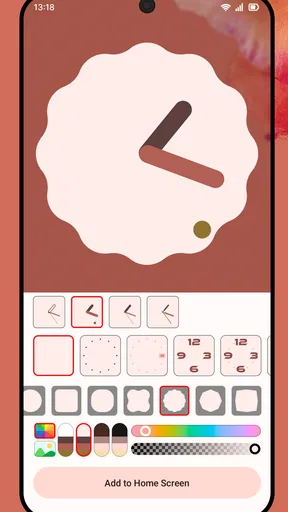
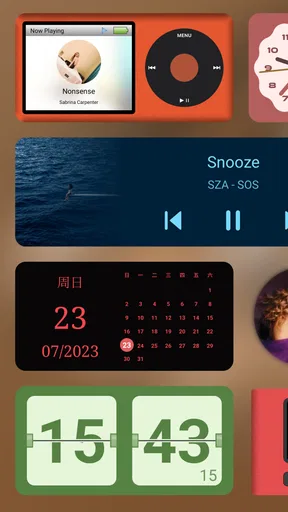
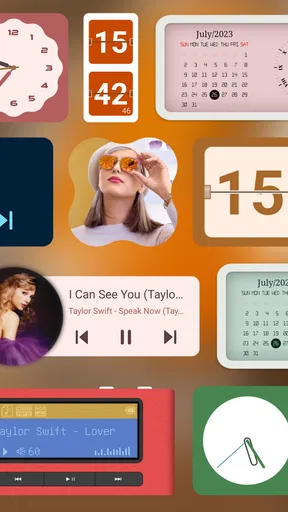
The first thing that caught my attention with Widgeet-Color Widgets is the sheer variety of options available. From clocks to calendars, and even battery widgets, this app covers it all. The widgets are not just functional; they are aesthetically pleasing, which is a big win in my books.
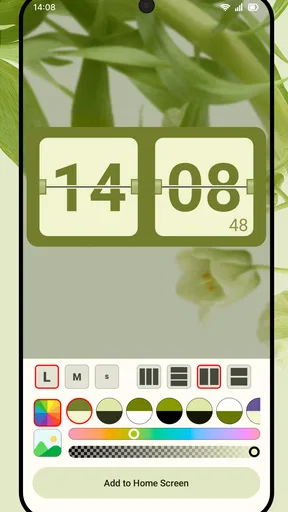
Let's talk about the design options. You can choose from a range of color schemes and styles. Want a minimalist look? They've got you covered. Prefer something vibrant and bold? No problem! The app allows you to customize each widget to match your mood or theme, and it's as easy as pie.
Easy Customization
Now, customization might sound complicated, but don't worry. The app interface is super user-friendly. Even if you're not a tech wizard, you'll find it a breeze to navigate. Simply select the widget you want to customize, pick your colors, and voila! Your widget is ready to go. It's like magic, but better because it's real.
One feature I absolutely love is the ability to use personal photos as backgrounds for widgets. It's a small touch, but it adds a lot of personality to the home screen. It’s like having a digital scrapbook that’s functional too. How cool is that?
Performance and Usability
Now, let’s get into the nitty-gritty of performance. I've been using this app for a few weeks, and I must say, it runs smoothly. No glitches, no lag, just seamless integration with my phone. It doesn't drain the battery either, which is a huge plus because nobody likes a dead phone halfway through the day.
One thing I noticed is that the widgets update in real-time. Whether it's the weather widget or the calendar, everything stays current. This is particularly handy for someone who's always on the go, like me. You can trust that your widgets are always displaying the most up-to-date information.
Why You Should Try It
In a world where personalization is key, Widgeet-Color Widgets stands out as a fantastic tool to tailor your smartphone experience. It’s not just about looks; it’s about creating an environment on your phone that feels just right for you.
Whether you're looking to make your phone functional, beautiful, or both, this app is a must-try. The best part? It's available for both Android and iOS, so no matter what device you’re using, you can enjoy this little slice of customization heaven.
In summary, Widgeet-Color Widgets is more than just an app; it's a gateway to making your device truly yours. With its wide range of customization options, easy-to-use interface, and reliable performance, it’s an app worth downloading and exploring. So go ahead, give it a whirl. You might just find yourself as hooked as I am.
Where it fits among personalization apps
Widgeet is rated 4.4 on average, with around 126,000 ratings and more than 5 million installs. Those figures suggest that plenty of people are interested in this style of home-screen customization, but they do not tell me whether a particular layout will suit my phone or habits. I’d judge it by a more practical standard: can I make the information I care about easier to spot without turning the screen into a design project I have to maintain?
That is where it differs from simply choosing a wallpaper or relying on a launcher’s default panels. A wallpaper changes the background but does not give me the same mix of glanceable content and personal imagery. Built-in widgets are often the simpler choice if I want a familiar system look with minimal adjustment. Widgeet is more appealing when I want color and visual consistency across widgets, and I’m willing to spend a little time getting the composition right.
One non-obvious way to keep the design useful is to treat color as a navigation cue. I might reserve one shade for the most important time or date panel and keep the rest quieter, so my eye lands where I need it to. I would also check the result against the actual wallpaper and app icons, rather than judging each widget in isolation. A style that looks polished in a preview can become hard to read once it shares space with the rest of the screen.
A realistic morning setup
Imagine checking the phone before leaving home. I want to see the time, remember what is on my calendar, and have a personal photo in view without unlocking several separate apps. With Widgeet, I’d begin by placing only the clock and calendar where I can reach and read them, then add a photo only if it does not crowd the shortcuts I use most. That is a more reliable starting point than trying to fill the entire screen on the first pass.
If I’m rushing, clarity matters more than decoration. I’d use a strong contrast for text and avoid placing important information over a busy image. When the day changes, the calendar can help orient me, but I’d still open the calendar itself to confirm details before acting on them. The widget’s role is to make a quick check convenient, not to replace the app that holds the full view.
There is also a sensible way to test whether a new setup earns its space: leave it in place through ordinary use and notice which panels I actually glance at. If I keep opening another app anyway, that widget may not be doing enough to justify its footprint. If I use it repeatedly, I can refine its size or styling around that habit. This trial-and-adjust approach keeps customization tied to a real need instead of a one-time burst of enthusiasm.
Content, cost, and expectations
The app is free to install and is rated for Everyone. It was released on January 10, 2023, and version 1.1.3.0 is listed for devices running Android 8.0 or later. In-app purchases range from $4.99 to $12.99 per item, so I’d explore the free experience first and decide whether any paid option is worth it to me before spending. The presence of purchases is a reason to check what is offered in the app, not a reason to assume I need to buy anything to begin personalizing.
Hello Widget is the developer, and the app’s central promise is visual control over widgets rather than a replacement for the phone’s core calendar, clock, or photo apps. I would keep those underlying apps available for full details and use the home screen for quick access. That distinction also helps when something looks delayed or incomplete: I can verify the information in its main app, then return to the widget for convenience once I know what I’m looking at.
For anyone concerned about connectivity, my advice is to assess the different widget types separately instead of making one broad assumption. A decorative choice and a panel that presents changing information do not have the same practical requirements. I’d check the latter during the network conditions I encounter most often, and I would not make an important decision based solely on a glance. This keeps the setup helpful without asking it to be more dependable than a home-screen shortcut should be.
My connectivity verdict
Widgeet makes the most sense to me as a personalization layer for people who want their home screen to feel considered and a little less standard. Its mix of visual choices and practical widget types gives me room to shape a screen around a routine, while the photo backgrounds offer a personal touch that a plain wallpaper cannot provide in the same way. The trade-off is that customizing takes attention, and the screen can become less useful if I value appearance over legibility or cram in too many panels.
I’d recommend trying it if you enjoy adjusting colors, want a photo-led layout, or would like key information visible before opening an app. I’d choose built-in widgets instead if I want the fewest steps, prefer a consistent system appearance, or rarely use the home screen as an information dashboard. In either case, I’d keep expectations grounded: use widgets for quick orientation, check the main app for details, and test any changing content under the connection conditions that matter in your day. That balance is what makes Widgeet worthwhile rather than merely decorative.
Verdict
Strengths of Widgeet-Color Widgets(Widget)
- Highly customizable widget designs.
- User-friendly interface for easy setup.
- Integrates smoothly with system apps.
- Regular updates with new features.
- Low impact on device battery.
Limitations of Widgeet-Color Widgets(Widget)
- Limited free features, many behind paywall.
- Occasional loading delays in customization.
- Ads can be intrusive in free version.
- Some themes require in-app purchases.
- Limited support for older OS versions.
Similar Picks in This Category
View All
Microsoft SwiftKey AI Keyboard
SwiftKey4.3

Wallpapers
Google LLC4.1

Zedge™ Wallpapers & Ringtones
Zedge4.7

Yandex Browser with Alice AI
Direct Cursus Computer Systems Trading LLC4.3

Ringtone Maker:create ringtone
Big Bang Inc.4.7

Fonts Keyboard
Fonts Keyboard3.9
Frequently Asked Questions
What is Widgeet-Color Widgets and what does it offer?
Widgeet-Color Widgets is a customizable widget app designed to enhance your smartphone’s home screen. It offers a wide range of colorful and stylish widgets that can display the time, date, weather, and more. Users can personalize their widgets with different themes, fonts, and colors to match their aesthetic preferences.
Is Widgeet-Color Widgets free to use, or does it have in-app purchases?
Widgeet-Color Widgets is free to download and use, but it does offer in-app purchases. These purchases unlock premium features such as exclusive widget designs, advanced customization options, and an ad-free experience. Users can choose whether to use the free version or upgrade for additional features.
How user-friendly is Widgeet-Color Widgets for beginners?
Widgeet-Color Widgets is designed with user-friendliness in mind, making it accessible for beginners. The app provides a simple interface with intuitive navigation, allowing users to easily browse and select widgets. Additionally, step-by-step guides and tutorials are available to help new users get started with customizing their home screens.
Does Widgeet-Color Widgets affect phone performance or battery life?
While Widgeet-Color Widgets is optimized to minimize impact, using multiple widgets may slightly affect phone performance or battery life. The app is designed to be efficient, but users should monitor their phone’s performance if they notice any changes. Regular updates aim to improve efficiency and minimize resource usage.
Is Widgeet-Color Widgets compatible with most smartphone models?
Widgeet-Color Widgets is compatible with a wide range of Android and iOS devices. It supports most smartphone models running the latest operating systems. However, users should ensure their device meets the app's minimum requirements by checking the app store listing to avoid compatibility issues.
